
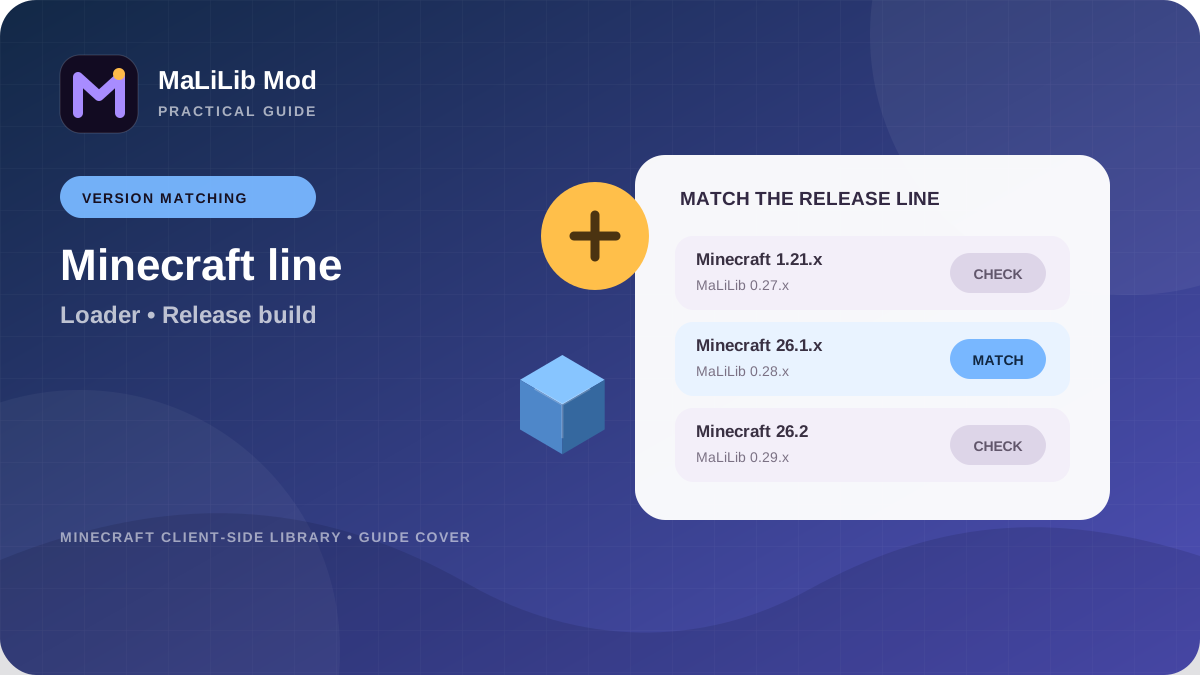
How to read MaLiLib Mod version labels
MaLiLib Mod version names often carry more than one piece of information. A release label can identify the Minecraft game line and a separate MaLiLib library revision, so treat the whole tag as meaningful rather than focusing only on the last number. On the current sakura-ryoko Releases page, for example, different release families exist for different Minecraft lines. That is a useful reminder that “highest number” and “best version for my profile” are not the same question. Your correct build is the one that matches the Minecraft environment and the mods that depend on the library.
Write the full version string down when you troubleshoot or update. Partial labels such as “0.29” can be too vague if multiple builds exist around the same library series. A full tag lets you return to the exact release page, compare notes and tell another person precisely what you installed. It also helps when filenames include the game version, loader name or maintainer suffix. Version literacy sounds minor, but it removes ambiguity from almost every support conversation around a shared library like MaLiLib.
Use the homepage version list as a quick index
The separate Versions page has been removed. Recent MaLiLib release lines are now listed directly in the homepage Versions section so visitors can compare game-version families without leaving the main page. Treat that list as a compatibility reference rather than a promise that every historical build is shown.
Version labels are only one part of the decision. For a normal modded-game setup, confirm that the file is a runtime mod build intended for your Minecraft version and loader. Do not assume that every archive or file carrying the project name belongs in the mods folder. Keep the exact version string visible while you compare it with dependent-mod requirements.
Match the Minecraft version first
The game version is the first filter because MaLiLib interacts with Minecraft code that changes between releases. A build compiled for one line can fail very early when loaded against another. In many cases the loader will display an explicit incompatibility message, but you should not depend on the error system to catch every possible mismatch. Identify your exact Minecraft version before downloading. Minor versions matter: 1.21.1, 1.21.5 and 1.21.11 are different targets, and a project may maintain separate branches or releases for them.
Do the same for every mod that uses MaLiLib. If you upgrade Minecraft but keep older client-side mods, the library alone cannot make those mods compatible with the new game. A coordinated upgrade is safer: choose the target Minecraft version, find compatible builds of the dependent mods, then choose the MaLiLib release they expect. This outside-in method prevents you from starting with a random library version and trying to force the rest of the profile around it.
Match the loader and project line
Loader compatibility is a separate dimension from Minecraft compatibility. The original and sakura-ryoko MaLiLib repositories are commonly associated with Fabric-side client mods, while the ThinkingStudios MaLiLib-Forge repository describes itself as an unofficial Forge and NeoForge port. A file made for one loader family should not be treated as a generic substitute for another. When a tutorial says “install MaLiLib,” inspect which loader the tutorial is using before copying its exact filename or download route.
Keep ported projects conceptually separate even when they share code or a name. A port may synchronize changes from an upstream project while also adapting loader-specific behavior, dependencies and release numbering. This site therefore presents the Forge / NeoForge repository under other versions rather than merging its releases into the primary Fabric-oriented version list. That layout is deliberate: it reduces the chance that someone will compare two unrelated numbering schemes and assume one is simply newer than the other.
When an older MaLiLib Mod version is appropriate
An older release can be exactly the right choice when your Minecraft profile is intentionally pinned to an older game version or mod set. Stable modded instances often remain on one Minecraft line for months because every component has been tested together. In that situation, updating MaLiLib alone may be unnecessary. If the profile works and you do not need a fix from a newer compatible build, preserving the known-good combination can be a sensible maintenance strategy.
However, “older” should still mean “correct for the profile,” not “the first file I found in a search result.” Use release tags, branches and release history to verify where the build came from. Keep a note of the exact version you know works. If you later test a newer build, store the old JAR outside the active mods folder so rollback takes seconds. Historical versions are most useful when they are documented and reproducible, not when they are scattered in a downloads folder with renamed filenames.
Compare release notes before changing versions
Release notes tell you what kind of change you are about to introduce. A small version jump can still include behavior changes that matter to downstream mods, while a larger-looking number may simply represent a different Minecraft target. Read the notes for bug fixes, data changes, rendering changes, networking changes, configuration changes and compatibility breaks. The current sakura-ryoko release history, for example, includes entries that describe fixes and internal changes rather than only new user-facing features. That context helps you decide what to test after an update.
When two releases are close together, compare what changed between them rather than assuming the later one is automatically needed. If you are solving a specific crash, look for a note that relates to the failing area. If you are performing routine maintenance, test the new version in a copy of the instance first. The purpose of version comparison is not to memorize changelogs; it is to build a direct connection between the change you install and the behavior you verify afterward.
Build a simple MaLiLib Mod upgrade plan
A reliable upgrade plan has four checkpoints: target Minecraft version, loader, MaLiLib release and dependent-mod releases. Record the current values, use the intended replacements from the primary source appropriate to each project, and change one logical group at a time. Launch after each group. If Minecraft fails, save the log and compare it with the last known-good combination. This makes incompatibilities much easier to isolate than a large one-click upgrade of the entire mod folder.
After the new setup is stable, update your notes so you know what “working” means next time. Keep the release tag link for MaLiLib alongside the profile version. A short text file with the Minecraft version, loader version, MaLiLib version and dependent mod versions is enough. Version management becomes much easier when you stop thinking of MaLiLib as a standalone number and start treating it as one component in a compatibility matrix.