
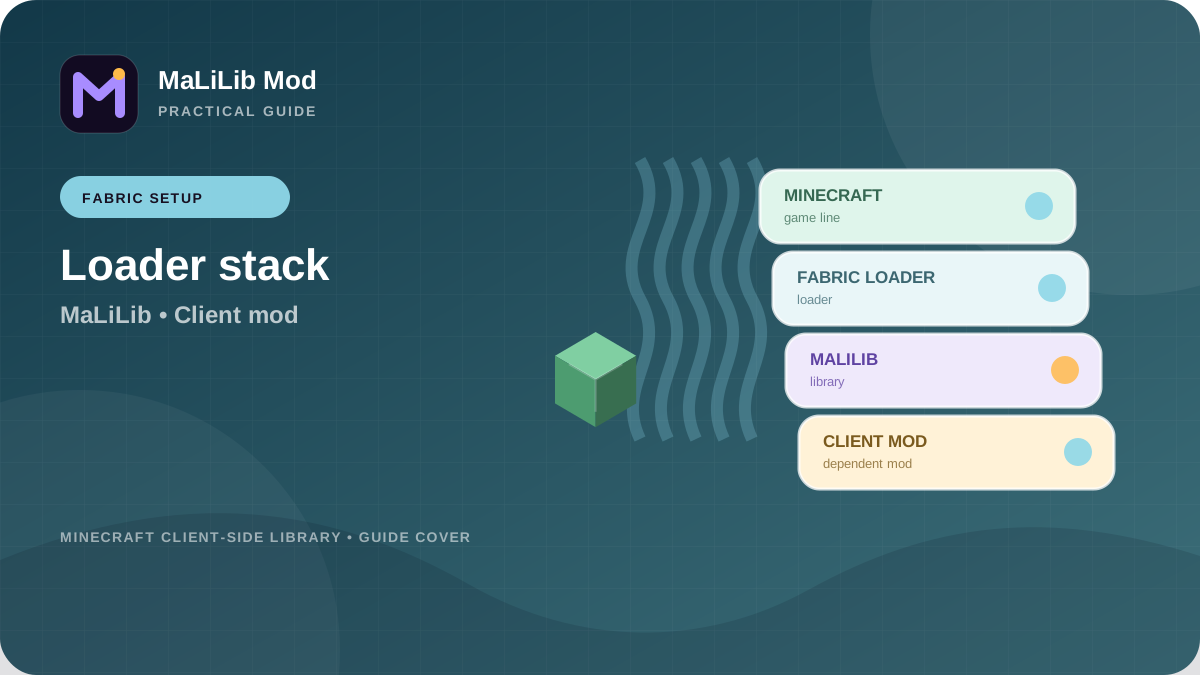
Start with one clearly named Minecraft profile
A clean Fabric setup begins with a launcher instance whose purpose is obvious. Include the Minecraft version in the profile name and, if your launcher supports notes, record the Fabric Loader version as well. Separate instances are especially useful for MaLiLib-dependent tools because they let you keep one stable setup while testing another. When all profiles share one mods folder, an old MaLiLib JAR can silently remain active after you think you upgraded. Dedicated instance directories make every installed file visible and reduce accidental cross-version mixing.
Launch the profile once before adding mods. This confirms that the selected Minecraft version and base launcher configuration work on their own. If the profile cannot reach the title screen before MaLiLib is installed, fix that problem first. Adding a library to an already broken environment makes diagnosis harder. After the clean launch, close the game fully and locate the exact instance directory from the launcher settings rather than relying on a remembered path.
Verify Fabric Loader before adding MaLiLib Mod
Confirm that the profile is actually using Fabric Loader and that the loader build supports your target Minecraft version. The loader is the layer that discovers mod JARs and enforces declared dependencies, so a wrong loader profile can make a correct MaLiLib file appear invisible. If the launcher shows a Fabric-specific profile name but the game starts as vanilla, revisit the installation. You want the loader environment verified before you add any library or client-side utility.
Do not confuse Fabric Loader with Fabric API. They are related parts of the Fabric ecosystem but serve different roles, and not every mod has the same dependency requirements. Read each project’s current documentation instead of installing extra libraries by habit. MaLiLib’s own requirements can change across branches and releases. The safest pattern is to satisfy only the dependencies explicitly required by the versions you are using, then add other components when a mod’s documentation calls for them.
Choose a MaLiLib Mod release for the exact game line
Use the homepage Versions section to compare the available MaLiLib release lines with your Fabric profile before downloading. Separate release families can exist at the same time, so chronological order alone is not a compatibility guide. A newer build for a different Minecraft line can still be wrong for your instance. Keep the full version string in your notes.
For a normal Fabric game profile, make sure the file you install is the correct runtime mod file for the selected Minecraft version. Place only one MaLiLib JAR in the profile’s mods directory. If you are replacing an older file, move it to a backup folder outside the active mods directory. This keeps rollback easy without leaving duplicate versions for the loader to discover. On the first test, keep the mod set small so any error produces cleaner evidence.
Add MaLiLib-dependent mods as a matched group
After MaLiLib is in place, add one dependent mod whose version clearly supports the same Minecraft line. Check that mod’s documentation for any minimum or recommended MaLiLib version. This relationship matters more than visual similarity between filenames. Two JARs can both mention the same Minecraft version while still targeting different API generations. When the loader reports a dependency range, choose versions that satisfy it exactly.
Launch after adding the first dependent mod. If the game works, add the next tool and repeat. This staged method takes a few extra launches but gives you a reliable boundary when a problem appears. If the fourth mod causes a crash, you already know the first three worked with the selected MaLiLib release. Large mod packs can still use MaLiLib successfully, but building the set incrementally is much easier to troubleshoot than copying dozens of files at once.
Perform a useful first-launch check
During the first full launch, watch for loader warnings and preserve the latest log. Once you reach the title screen, verify that the dependent mods appear in the expected mod list or menus. Open one configuration screen and test one hotkey-driven feature. MaLiLib’s shared configuration and keybind systems make those checks good indicators that the library is not merely present but functioning with the dependent mod. You do not need to test every option immediately.
If a problem appears, record the exact stage. A loader dependency screen suggests version or placement issues. A crash after world entry may involve a different code path. A missing hotkey may be configuration-specific. Reproduce the issue twice before changing anything. Consistent reproduction is valuable because it separates a real compatibility problem from a one-time launcher or resource hiccup. Then make one targeted change based on the evidence.
Maintain a stable Fabric and MaLiLib Mod combination
Once the profile works, preserve its version information. A small text file in the instance folder can list Minecraft, Fabric Loader, MaLiLib and the main dependent mods. This gives you a known-good baseline before future updates. When a new MaLiLib release appears, read its notes and decide whether you need it. You do not have to update a stable library immediately if your current game line and dependent mods work and the new release does not address a problem you have.
When you do update, back up the instance, replace only MaLiLib first and run a quick verification. If dependent mods also require new versions, update the related group in a planned sequence and test between steps. Keep the previous files outside the active mods folder until the new setup has been stable for several sessions. Version notes plus reversible changes make long-term maintenance much less stressful.
Move MaLiLib Mod to a new Minecraft version carefully
A Minecraft upgrade should be treated as a new compatibility target, not a normal MaLiLib patch. Create or copy a separate profile for the new game version. Install a matching Fabric Loader, then identify MaLiLib and dependent-mod releases made for that line. Do not carry the entire old mods folder forward and repair errors one by one. Starting with a small, compatible set reveals whether each project has actually published support for the target version.
Bring configuration files over only after the new versions launch with defaults. If the projects support migration, you can then copy settings and verify them. Keep the old profile intact until the new one is fully stable. This parallel approach gives you a working fallback and prevents a game-version experiment from destroying a trusted setup. MaLiLib works best in Fabric profiles when version selection, file placement and testing are all deliberate rather than automatic.